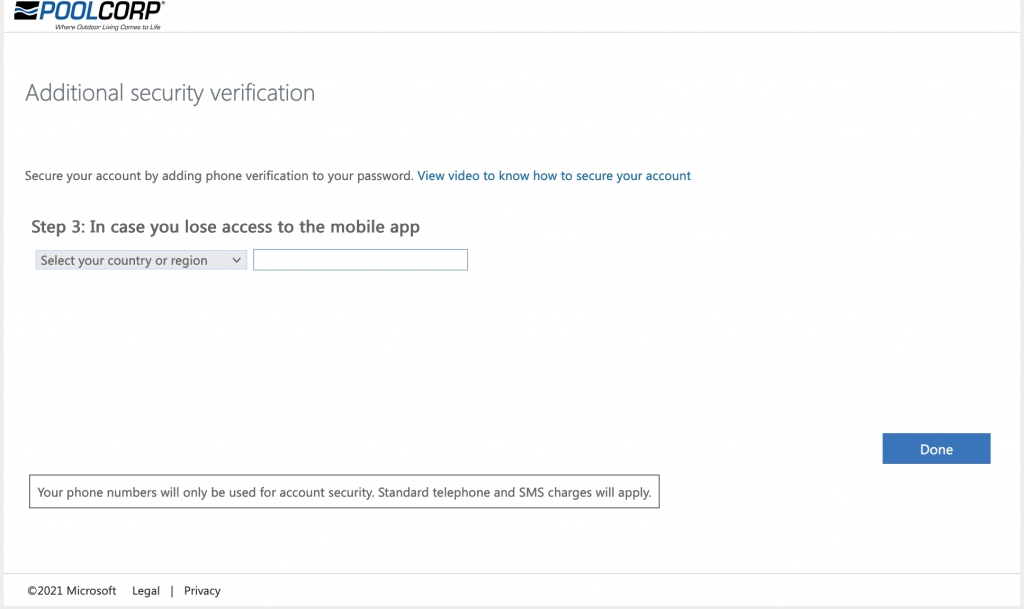
Upon sign in POOLCORP will let you know that more information is required.
Step 2:
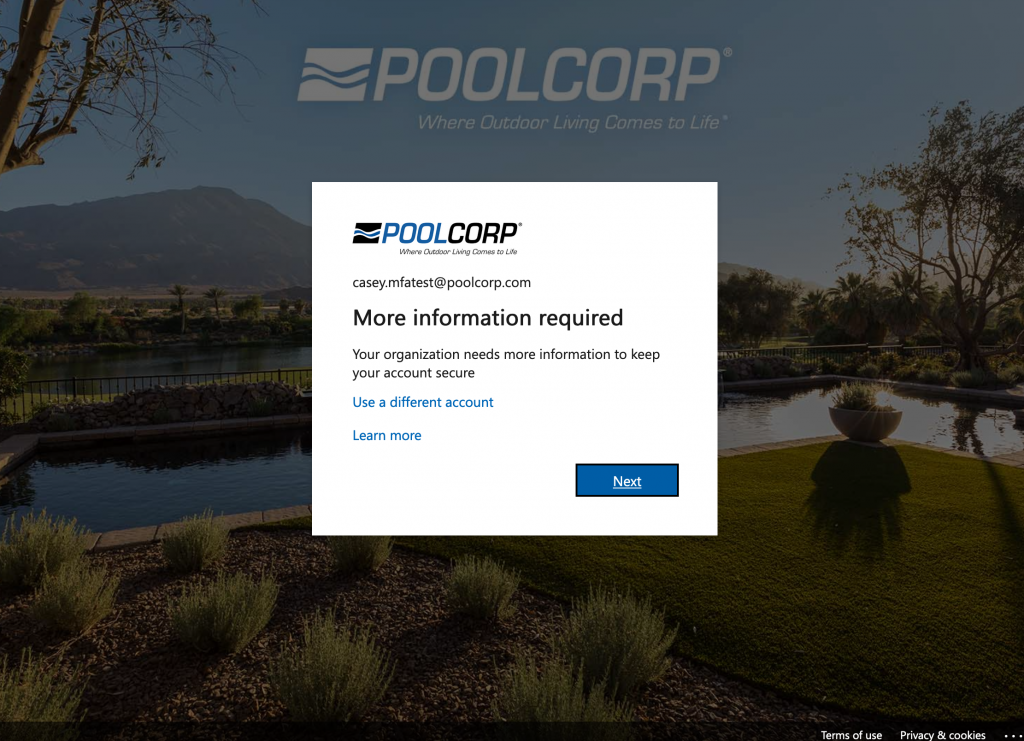
From the drop down list under How should we contact you, select Mobile App and Receive Notifications for Verification. Then choose Set up.
Step 3:
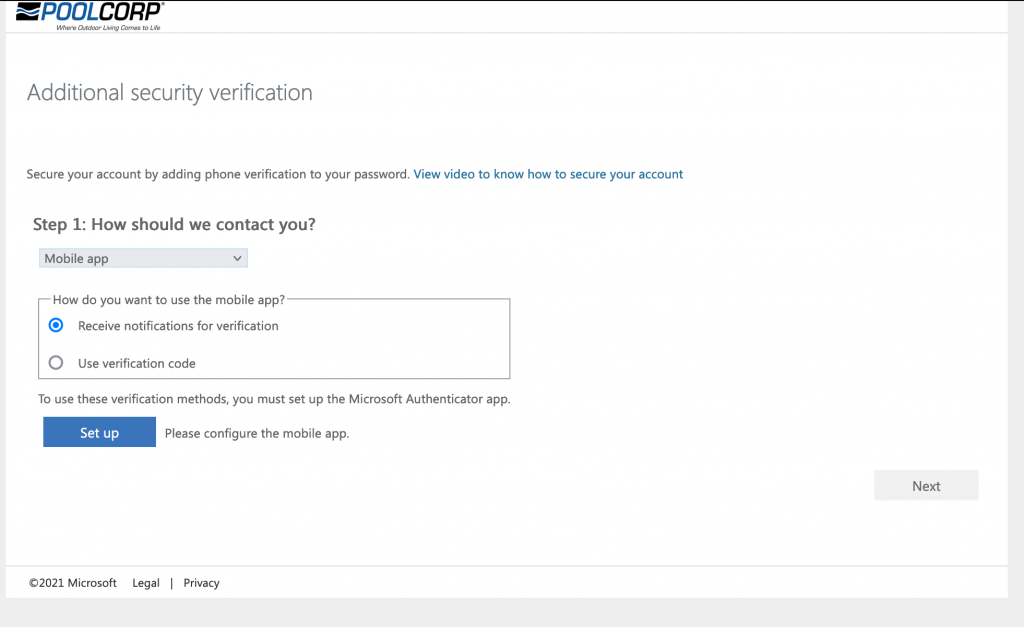
You will then be presented with this QR code which we will need to scan. You now need to get the Microsoft Authenticator app from the app store. You can get it by searching in the store or clicking this link.
Step 4:
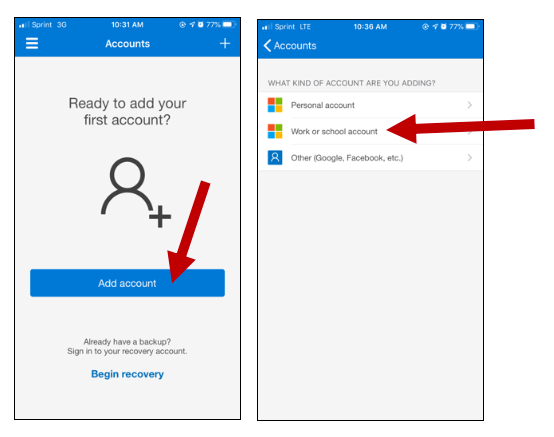
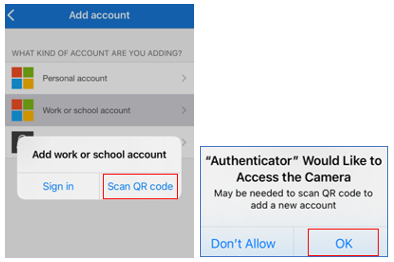
Inside the app, click Add Account, or the + at the top right. Choose Work or School and then Scan QR Code.
Step 5:
Using the camera that comes up on the app, move the QR code on the desktop into view of the camera.
Step 6:
The system will then send you a test notification to approve.
I
Step 7:
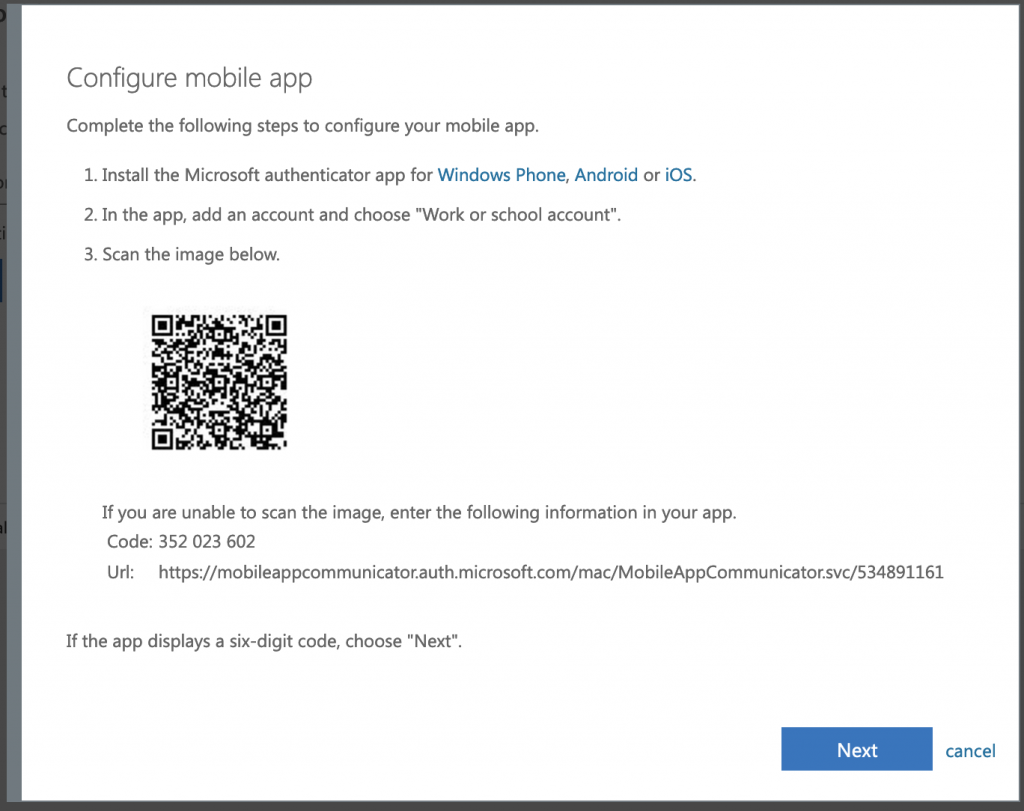
You will then need to supply a backup phone number. Your office phone or cell phone number will work well.
Step 8:
Finally, you will be presented with this confirmation screen. Please verify that the option in the first dropdown box is Notify me through the app. You have now completed enrollment and can close this screen.
Step 9:
Starting February 2023, Microsoft Authenticator users will be prompted to do number matching during their authentication process.

 I
I