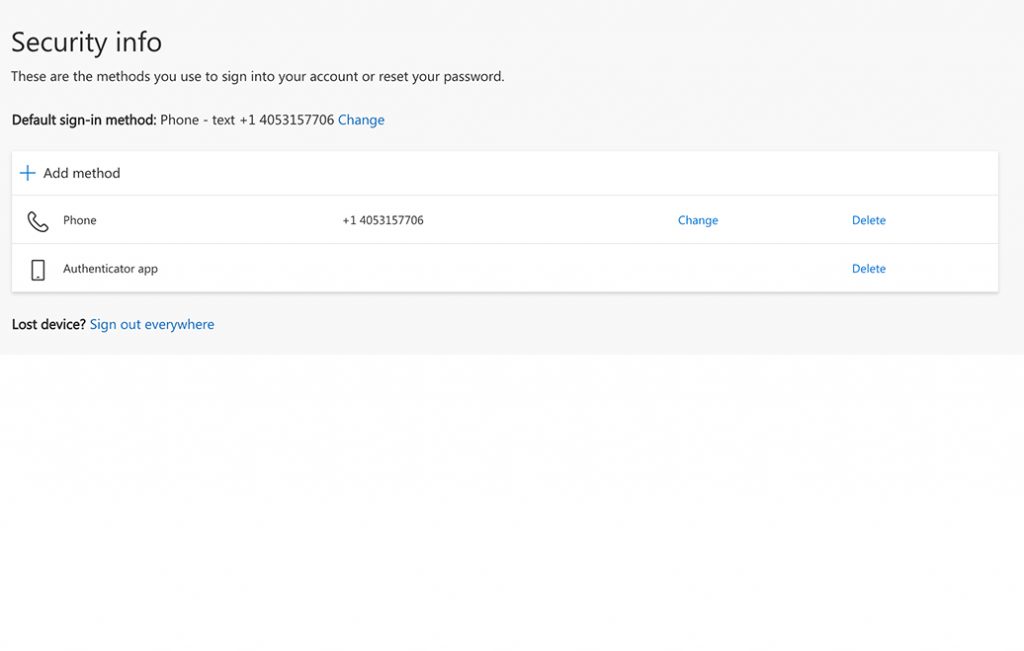
1) Click Delete next to the device you want to remove. After removal, click Add Method at the top left.
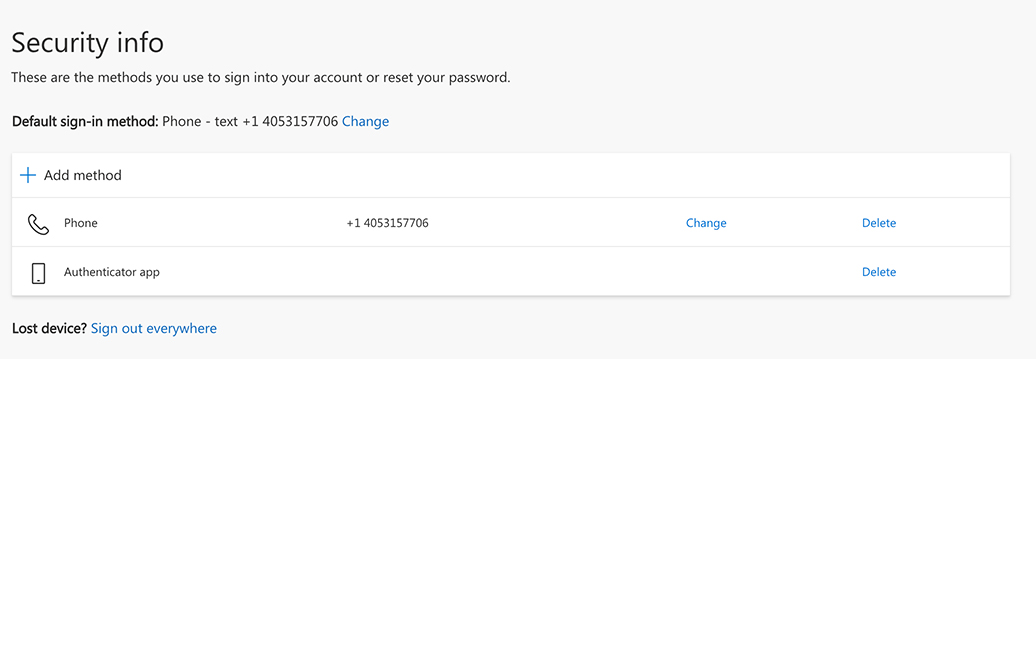
2) Select Authenticator App

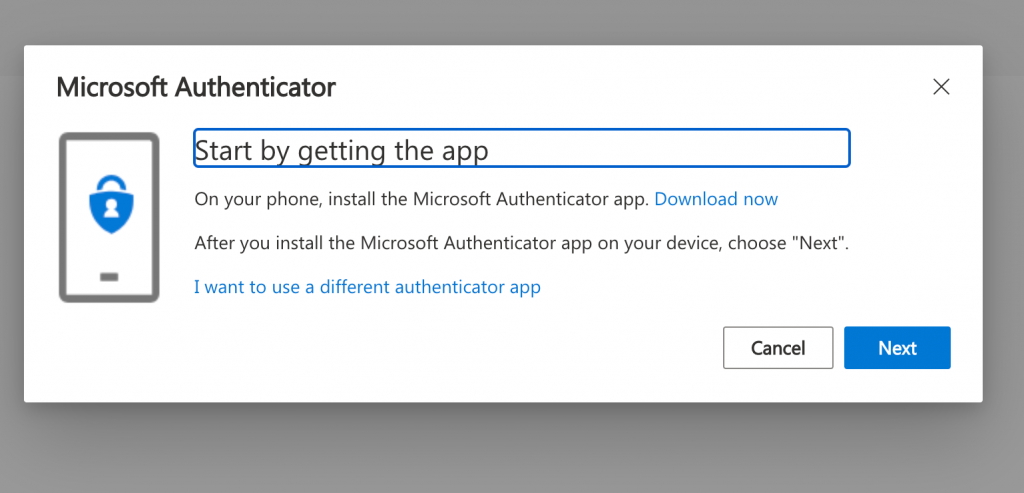
3) Download the Microsoft Authenticator App to your phone. You can get it by searching for it in the App Store, or click the Download Now button from your device. You can also click here for a link.
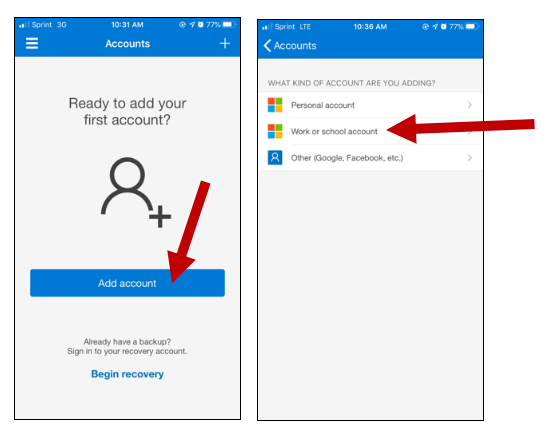
4) Open the Microsoft Authenticator app. Choose Add Account and then select Work or School.